
How to Turn On YouTube Notifications That Actually Arrive (2026)
How to turn on YouTube notifications for a channel on iPhone, Android and desktop: the bell, the app setting, device permission, and a backup that never misses.
Sublark Team
Content Team
You hit Subscribe, tapped the bell, and still found out about a new upload two days late. Turning on YouTube notifications takes three switches, and most people only flip one.
In this guide:
- How to turn on YouTube notifications for a channel (phone and computer)
- Why All beats Personalized on the bell
- The YouTube setting that overrides every bell
- How to allow YouTube notifications on iPhone, Android and Chrome
- Why alerts still go missing, and the backup that does not
How to turn on YouTube notifications for a channel
You turn on YouTube notifications one channel at a time, with the bell next to the Subscribe button. These steps come from YouTube Help.
On a phone or tablet:
- Open the YouTube app and go to the channel's page.
- Tap Subscribe if you have not subscribed yet.
- Tap the bell next to Subscribed.
- Choose All.
On a computer:
- Go to the channel page, or any video from the channel, on youtube.com.
- Click Subscribe if needed.
- Click the bell and choose All.
Repeat this for each channel you care about. If you follow MrBeast, Veritasium and Mark Rober, that is three separate bells.
Choose All, not Personalized
All is the bell setting that sends the most alerts, and it is not the default. When you subscribe, YouTube sets the bell to Personalized for you.
YouTube Help describes the three options:
- All: notifications for long-form uploads and live streams, plus some Shorts picked by YouTube.
- Personalized: notifications for some uploads, Shorts and live streams, picked by YouTube.
- None: no notifications from that channel.
Personalized lets YouTube decide which videos are worth a ping. For a channel with long gaps between videos, like Kurzgesagt, that can mean a whole video slips by without a word. All does not promise every Short. YouTube says you may get some personalized Shorts notifications, based on your subscriptions and watch history. Our guide to YouTube notification settings explains every option in more depth.
Check your old subscriptions
Every channel you subscribed to before reading this is probably on Personalized. In the app, open the Subscriptions tab, tap All at the top right, and switch the bell to All on the few channels that matter most.
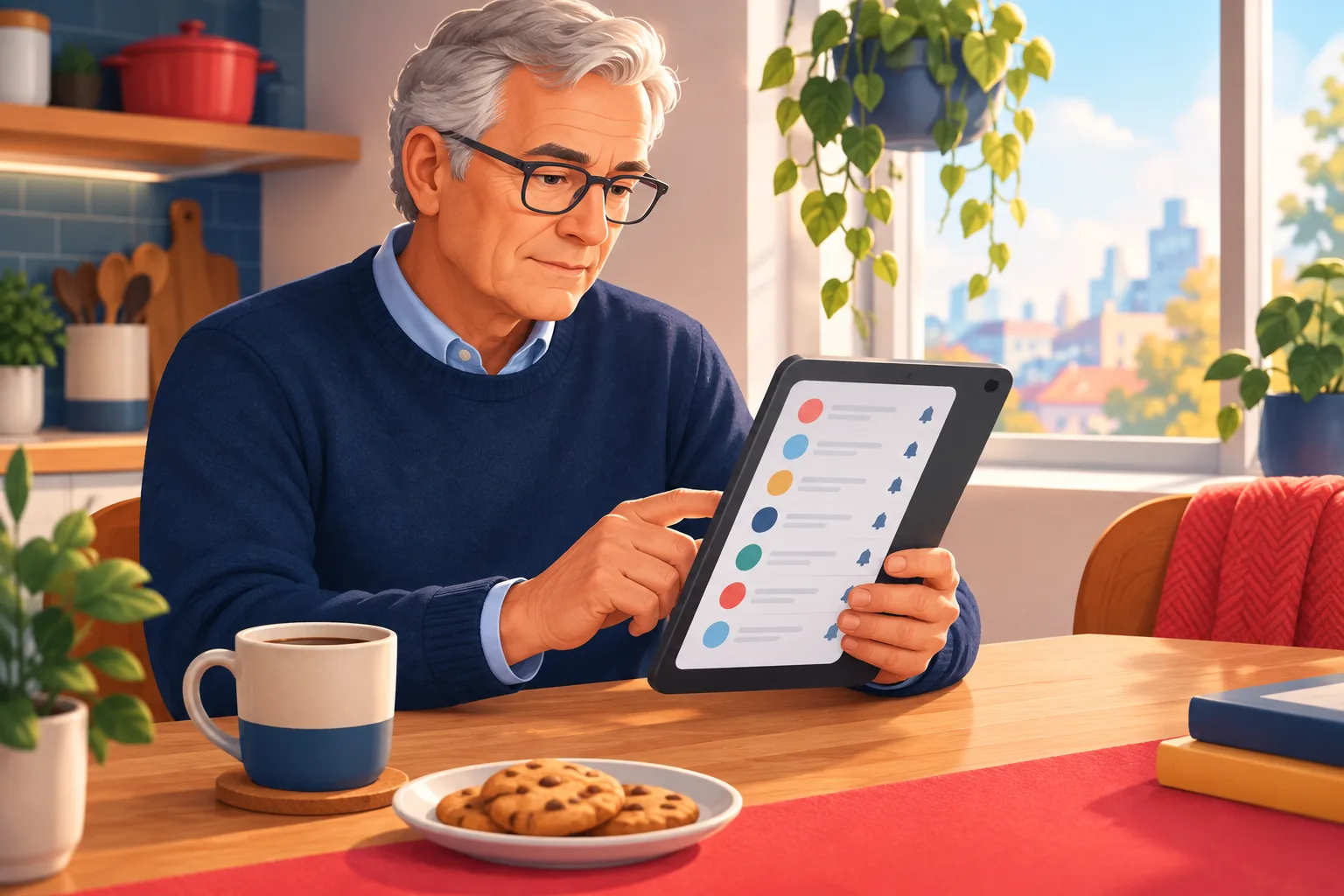
Turn on Subscriptions in your YouTube settings
The Subscriptions toggle in YouTube's settings overrides every bell on your account. If it is off, no channel can notify you, no matter what the bell says.
- Tap or click your profile picture.
- Choose Settings, then Notifications.
- Make sure Subscriptions is switched on.
While you are there, you can switch off Recommended videos. Those alerts come from channels you never subscribed to, and they crowd out the uploads you asked for. This setting belongs to your Google account, so you only change it once.
Allow YouTube notifications on your phone or browser
Your phone or browser has the final say over YouTube notifications. YouTube can send an alert, and your device can still refuse to show it.
- iPhone or iPad: open the iOS Settings app, tap Notifications, find YouTube, and turn on Allow Notifications.
- Android: open Settings, then Notifications, then App notifications, and make sure YouTube is allowed.
- Computer: in YouTube's Settings, then Notifications, turn on the switch next to Chrome under Desktop notifications. Then allow notifications for youtube.com in your browser.
Device permission is the one layer that does not follow your account. Your phone, tablet and each browser need it set separately. If alerts reach your phone but not your laptop, see YouTube desktop notifications not working.
Why YouTube notifications still go missing after you turn them on
YouTube notifications can go missing even with every switch on, because YouTube filters them on purpose. Three limits explain most missing alerts.
- The inactivity rule. YouTube Help says: "If you have selected All and haven't watched or engaged with the channel in a while, you'll only receive notifications for that channel inside the app." PPC Land traces the change from a March 2025 test to a permanent rollout on April 21, 2026.
- The daily cap. Viewers get at most 3 notifications from each channel in 24 hours, across uploads, live streams and premieres.
- The inbox. Alerts held back by the inactivity rule wait in the bell list inside the app. You only see them if you open YouTube and look. Our guide to YouTube inbox notifications shows where they go.
None of these is a bug, and no setting turns them off. If your bell is on All and alerts still never arrive, work through not getting notifications with the bell on.
How to turn on email notifications for a YouTube channel
YouTube no longer sends upload emails. It ended them on August 13, 2020, saying fewer than 0.1% were opened. Sublark's YouTube email notifications bring them back for any public channel.
- Search the channel on Sublark.
- Enter your email address.
- Confirm, and you are set.
Sublark emails you as soon as it detects a new upload, usually within the hour. There is no inactivity filter, no daily cap and no app permission to check. It works the same for a busy channel like Fireship as for one that posts twice a year.
It is free for viewers. You can find any channel in seconds. For other ways to get alerts without the app, see how to get notified when a YouTuber uploads, or follow the step-by-step YouTube upload email alerts setup.
Turn on the alert YouTube cannot filter
Pick a channel once and get an email within the hour of every upload. No bell, no app permission, no activity score.
Search a channelThe 60-second checklist
Turning on YouTube notifications properly takes four quick checks. Use this list for every channel you care about:
- Bell set to All on the channel.
- Subscriptions on in Settings, then Notifications.
- YouTube allowed in your phone's or browser's notification settings.
- An email alert on Sublark for the channels you cannot afford to miss.
The first three get YouTube's alerts as far as YouTube allows. The fourth covers what YouTube holds back. For more ways to stay current, read how to never miss a YouTube video.
Frequently Asked Questions
How do I turn on notifications for a YouTube channel?
Open the channel in the YouTube app or on youtube.com. Tap Subscribe if you have not already. Then tap the bell next to the Subscribed button and pick All. That tells YouTube you want alerts for the channel's long-form uploads and live streams. Next, check that Subscriptions is on under your profile picture, then Settings, then Notifications, and that your phone or browser allows YouTube to show notifications. All three switches must be on.
Should I pick All or Personalized on the YouTube bell?
Pick All for any channel you never want to miss. YouTube Help says All covers long-form uploads and live streams, while Personalized sends notifications for only some uploads, Shorts and live streams, chosen by YouTube. Personalized is the default when you subscribe, so many people have it without knowing. Shorts are the exception: YouTube says All may bring some personalized Shorts notifications, not all of them. All has one more limit, because YouTube can stop pushing alerts if you have not watched the channel in a while.
Why am I not getting YouTube notifications after turning them on?
The most common reason is YouTube's inactivity rule. If you chose All but have not watched or engaged with a channel in a while, YouTube Help says you will only receive notifications for that channel inside the app. YouTube also sends at most 3 notifications per channel in 24 hours. Your phone's focus mode, battery saver or a blocked browser permission can hide alerts too. Check each layer, then add an email alert for channels that matter.
Can I turn on YouTube email notifications for new videos?
Not inside YouTube. YouTube ended email notifications for new uploads on August 13, 2020, saying fewer than 0.1% of those emails were opened. The Email notifications section in YouTube settings no longer includes new uploads. To get an email when a channel uploads, use Sublark. Search the channel, enter your email address, and you get an email within the hour of every new video. It is free for viewers.
Do I need to turn on YouTube notifications on every device?
Partly. The channel bell and your YouTube notification settings belong to your Google account, so they follow you to every signed-in device. Device permission does not. Your iPhone, your Android tablet and each browser on your laptop must each allow YouTube to show notifications. If alerts work on your phone but not your computer, the browser permission is usually the missing switch. Email alerts skip this step because every device already shows your inbox.
Turn on alerts that always arrive
Search any YouTube channel on Sublark, enter your email, and get an alert within the hour of every upload. No bell settings to babysit.
Find your channel- Free for viewers
- Within the hour of every upload
- Works on every device
Are you a creator? Give your subscribers reliable upload alerts →
Written by Sublark Team
Content Team
Related Articles
12 Best Educational YouTube Channels in 2026 (+ How Often They Post)
The 12 best educational YouTube channels for science, math, engineering and history in 2026, how often each really uploads, and how to never miss one.
12 Best History YouTube Channels in 2026 (+ How Often They Post)
The 12 best history YouTube channels in 2026, from military history to ancient Rome and food history, how often each one posts, and how to never miss one.
Best YouTube Notification Apps & Tools in 2026 (Ranked)
The best YouTube notification apps in 2026, ranked and compared. RSS tools, IFTTT, browser extensions, and the one-click email option that never misses.
Never miss an upload from your favorite channels
Get a simple email alert every time a channel you love posts a new video. Free, instant, no algorithm in the way.
Get Email Alerts — Free